|
Navigation using FolderTree.Some time ago I bumped-in on a real nice piece of JavaSccript on the web, written by Marcelino Alves Martins. It is a real successfull attempt to make navigation thru a web-site a bit more "visual". The program shows some sort of tree structure of folders and documents in the browser, ala Windows Explorer. First we will discuss a bit older version (which by the way is no longer supported by Marcelino) that comes from 1997. The nice thing about this version is that it uses just HTML and JavaScript without using any fancy new commands, so that it will also work on the older 3.x versions of NetScape and Internet Explorer. |
||
| Example. | On the left, there is a link to a version where only the icons of the folders and documents are links. By changing one single parameter you can change the look-and-feel of the program and make the text of the document name link to the file, so you can click the document title to open it in the right frame. Personally, I think this looks better because it more closely imitates the behaviour of the Windows Explorer. |
|
| Example. | On the left there is a link to a version where we changed this parameter. This link (and the previous one) point to a version of FolderTree as is was made by Marcelino Martins. I made some adjustments to the script myself. In the first place I made sure that this frameset could no longer be 'framed in a frame' because the script will not function when this happens. Furthermore I 'streamlined' several functions to make it faster and more flexible. Another thing that I found confusing was that when USETEXTLINKS was 'on', you could only click the text of a document title, and not the text of a foldername. I changed this so that clicking the text of a foldername would open or close the folder. I also added several features and fixed some bugs that only showed-up when the script was executed with Internet Explorer 3.0 for Windows 3.1x. |
|
| Version 1.3a. | Here on the left there is a link to this modified version, I called version 1.3a. In the description of this script (furtheron on this page) I assume you are using this 1.3a version. The basic principle.The basic principle of FolderTree is amazingly simple. The whole thing consists of a frameset, made-up of at least two frames, 'treeFrame' and 'folderFrame'. You can also make more frames,
but at least these two must exist. In the 'treeFrame' is where we will create the tree of folders and documents, and 'folderFrame' is the frame where most of the documents are shown. Basefolder.htm is the welcome- or home- page of your site. Basetree.htm has a different purpose. When, later-on, the tree of documents and folders has to be magically shown on your screen, it will be just as nice if everything goes a bit smoothly. One of the things we want is that the images that are used to create the picture, are already loaded in the browsers cache. The images are loaded in cache because they are a part of basetree.htm. Between the HEAD tags of the frameset is a piece of JavaScript that is
responsible for building the tree of folders and documents. The onLoad
event of the frameset triggers the function initializeTree(). This
function in it's turn calls two other functions, generateTree()
that first determines what the treestructure should look like at that
moment, and redrawTree(), that overwrites the page that is loaded
in the treeFrame (basetree.htm) with the treestructure. How you can modify the tree to reflect the structure of your own website is described below.
Folders and Subfolders. |
|
| ft-13a.exe | First of all, you must obtain all files. Here on the left is a link to a self extracting archive. Download it, place it in a separate folder on your PC and execute it to extract all the files. Once you have done this you can view it by opening index.htm in your browser. The next thing you'll probably want to do is change the tree structure to reflect your own structure and documents. You should only do this when you have at least some idea of what programming is. Use the existing tree to give you a start The only part you have to adjust is the generateTree() function. Select the type of tree you want.Two types of trees are supported:
Creating folders.The base folder is created using the command below.foldersTree = gFld("Start folder")
In the call to the function gFld(), the name of the desired
folder (between quotes) is forwarded to the function. You can use any text
to identify the desired folder name, but for the top-level folder this must
be Start Folder. (Any other folder can have any name.) What you enter here, is the text that comes next to
the folder icon in the tree. The result of
the function gFld() is stored in the variable foldersTree. The next
thing we can do is create subfolders and documents in the Start folder. In
all folders you MUST first create any subfolders and than the document links.
You can create a subfolder within a folder by storing the result of the
function
insFld([parent folder], [child folder]) |
|
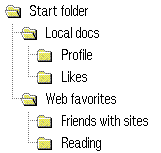
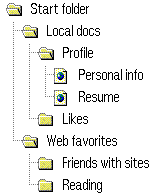
| Example | If we look at the example, we see that we have a folder called 'Local Documents' below the Start Folder. To create this folder we use the function gFld() and we enter (between quotes) Local Documents inside the brackets. The complete result of the function insFld is stored in a variable, in this case aux1.If we work this out for the subfolder 'Local Documents' this comes down to: aux1 = insFld(foldersTree, gFld("Local Documents"))
Below this subfolder (aux1), we can of course make new subfolders and links
to documents. If we want to make a subfolder called 'Privat
Documents' below the folder 'Local Documents', things are going to look
like:aux2 = insFld(aux1, gFld("Privat Documents"))
If we want to create a second folder below 'Start Folder' , called 'Search
Engines', things are going to look like:aux1 = insFld(foldersTree, gFld("Search Engines"))
What is also important, is the order in which we define things. When we
f.i. define a folder, we have to define what's in that folder, before we
can define the next folder. I will come back to this subject after we
discussed the creation of document links.
Links to Documents. |
|
Create document links within a folder.To put a document in the tree you use the function:insDoc([parent folder], [document link])Instead of the red text 'parent folder' we write, just as with the creation of subfolders, the name of the variable that holds the parent folder. Instead of the green text 'document link' we write the call to the function that returns the link to the document. This function is gLnk(). Below is an example. |
insDoc(aux1, gLnk(0, "Modifying the script", "generatetree.htm", "folderFrame"))
                  /\            /\                   /\               /\
                  ||            ||                   ||               ||
               Doc type       Title                 Link            Target
|
The function gLnk() is called with four arguments:
Folders with sub-folders and documents.It is possible to create mixed-folders, that means folders containing both subfolders and documents. Within a certain folder you must first create the sub-folders ( insFld ) and then the documents ( insDoc ). This implies that within a folder, all sub-folders are in the top, and the document links at the bottom of the folder.
The order of the definitions.Something that is very important while modifying the function 'generateTree()' is the order in which the components of the tree are defined. The following rules apply here:
When you start defining the tree structure, you imagine what the tree would look like when all folders are expanded. Look at all the components of the tree, from top to bottom. This is also the sequence in which components are defined inside the function generateTree(). Below is an example. |
foldersTree = gFld("Start folder")
  aux1 = insFld(foldersTree, gFld("Local Documents"))
    insDoc(aux1, gLnk(0, "Modifying the script", "generatetree.htm", "folderFrame"))
    insDoc(aux1, gLnk(0, "Frequently Asked Questions", "foldertreefaq.htm", "folderFrame"))
    insDoc(aux1, gLnk(0, "Description of Changes", "changes.htm", "folderFrame", "folderFrame"))

  aux1 = insFld(foldersTree, gFld("Search Engines"))
    aux2 = insFld(aux1, gFld("Dutch"))
      insDoc(aux2,gLnk(1, "ILSE", "www.ilse.nl", "_top"))
      insDoc(aux2,gLnk(1, "LYCOS", "www.lycos.nl", "_top"))
    aux2 = insFld(aux1, gFld("Global"))
      insDoc(aux2,gLnk(1, "Alta Vista", "www.altavista.com", "_top"))
|
Starting the tree with some folders open.You also have the possibility to open some branches of the tree when it comes-up. To do that, you have to make one or more calls to the function 'clickOnFolderRec()'. The place where you have to insert these calls, is at the bottom of the function 'generateTree()'.In my case I only open the folder "Start folder", but you can open more folders. below are a few examples:
|
|
|
|
 |
| Last change May 1st 2000. |
|
|